


In this short guide, we will learn how to backup your Kobo highlights and notes so you never lose them when upgrading devices or resetting your eReader.
The Problem
Your precious book highlights and reading notes are trapped inside your Kobo device. If you factory reset, upgrade to a new Kobo, or reinstall books, you'll lose everything.
The good news? All your annotations are stored in a simple database file that you can copy, backup, and restore anytime.
Where Kobo Stores Your Annotations
Connect your Kobo to your computer. You'll find everything in:
.kobo/KoboReader.sqlite
This single file contains:
- All your highlights
- All your notes
- Bookmarks
- Reading progress
- Book metadata
Can't see the .kobo folder? Enable hidden files:
- Windows: File Explorer → View → Show hidden files
- Mac: Press Cmd+Shift+Period in Finder
- Linux: Press Ctrl+H in file manager
Using Calibre Plugin (Easiest Method)
If you use Calibre to manage your ebooks, there's a much simpler way to backup and view your Kobo annotations.
Install Kobo Utilities Plugin
- Open Calibre
- Go to Preferences → Plugins → Get new plugins
- Search for "Kobo Utilities"
- Click Install and restart Calibre
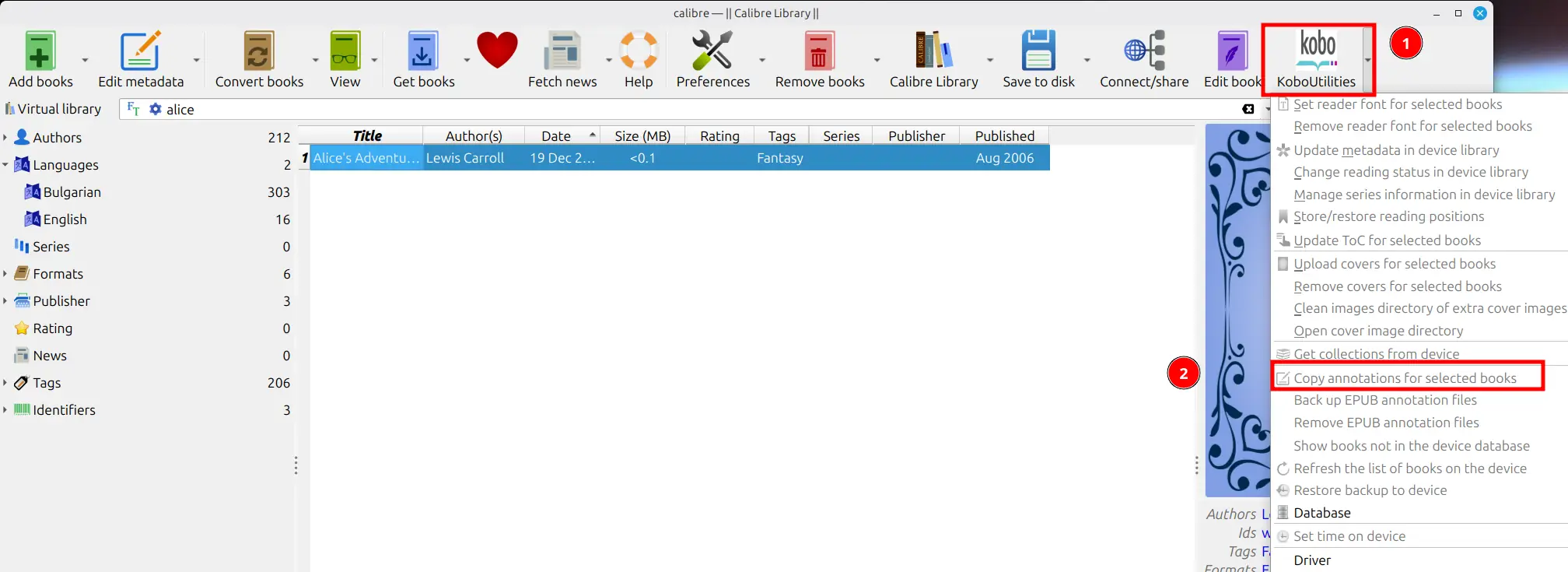
Copy Annotations for Selected Book ( Best )
Step-by-Step Guide
- Connect your Kobo eReader to your computer via USB and tap Connect on the screen.
- Open Calibre on your computer.
- Select the book from your computer's Calibre Library list (ensure you are not in the "Device" view, as these plugin features only populate from the computer library).
- Click the Kobo Utilities icon in the toolbar. (If you don't see it, click the small arrow/triangle on the plugin to show the full drop-down menu).
- Select "Copy annotation from the selected book".
- An Annotation dialog window will pop up displaying all of your highlights and notes.
- Highlight the text in the pop-up window and manually Copy (
Ctrl+Con PC orCmd+Con Mac) to paste it into any document or note-taking app.
View and Export Annotations
Once installed, the plugin automatically reads annotations when you connect your Kobo:
- Connect your Kobo to the computer
- In Calibre, right-click on any book
- Select Kobo Utilities → View Annotations
- See all your highlights and notes in a readable format
Export Options
The Kobo Utilities plugin lets you:
- Export to HTML - Create a beautiful formatted webpage of your highlights
- Export to CSV - Get a spreadsheet with all annotations
- Export to TXT - Simple text file for each book
- Backup database - One-click backup of
KoboReader.sqlite
Auto-Backup Feature
Enable automatic backups:
- Preferences → Plugins → Kobo Utilities → Customize plugin
- Check "Automatically backup KoboReader.sqlite"
- Choose backup location
- Click OK
Now every time you connect your Kobo, Calibre automatically saves a dated backup.
Quick Backup (2 Minutes)
The simplest backup is just copying the file:
- Connect your Kobo via USB
- Navigate to the
.kobofolder - Copy
KoboReader.sqliteto your computer - Rename it with today's date:
KoboReader_2024-12-15.sqlite
That's it. Your annotations are backed up.
Do this weekly if you read actively, or before any device updates.
View Your Annotations
Want to actually read your highlights on your computer? Download DB Browser for SQLite (it's free):
Download: https://sqlitebrowser.org/
To see your highlights:
- Open DB Browser for SQLite
- File → Open Database → Choose
KoboReader.sqlite - Click "Browse Data" tab
- Select Bookmark table from dropdown
You'll see all your highlights and notes in a spreadsheet-like view.
Export to CSV
To get a readable file of all your notes:
- In DB Browser, go to the Bookmark table
- File → Export → Table as CSV
- Save it as
my-kobo-highlights.csv
Open this CSV in Excel or Google Sheets to read, search, and organize your highlights.
Restore to New Kobo
Got a new Kobo? Transfer your annotations:
- Backup your new Kobo's database first (just in case)
- Connect new Kobo to PC
- Go to
.kobofolder - Replace
KoboReader.sqlitewith your backup copy - Eject Kobo safely
Your new device now has all your old highlights and notes.
Warning: This replaces everything on the new device. If you already have new annotations, you'll lose them. Back up first!
Simple Python Script to Export Highlights
If you're comfortable with Python, here's a quick script to export all your highlights to a readable text file:
import sqlite3

conn = sqlite3.connect('KoboReader.sqlite')
cursor = conn.cursor()

cursor.execute("""
    SELECT c.Title, c.Attribution, b.Text, b.Annotation
    FROM Bookmark b
    JOIN content c ON b.ContentID = c.ContentID
    WHERE b.Text IS NOT NULL
    ORDER BY c.Title
""")

current_book = None

for title, author, highlight, note in cursor.fetchall():
    if title != current_book:
        print(f"\n{'='*60}\n{title}\nby {author}\n{'='*60}")
        current_book = title

    print(f"\n→ {highlight}")
    if note:
        print(f"  Note: {note}")

conn.close()
Save this as export_kobo.py and run:
python export_kobo.py > my_highlights.txt
Common Questions
Q: Will this work with library books?
A: Yes, but DRM-protected books might have limitations.
Q: Can I merge annotations from two Kobos?
A: Not easily. You'd need to manually combine databases using SQL, which is complex.
Q: Is there an automatic cloud backup?
A: Not built-in. Kobo only syncs purchases, not sideloaded books or their annotations.
Q: Can I export to Markdown?
A: Yes! Just modify the Python script to print Markdown formatting instead of plain text.