


In this short guide, you'll see how to fix and troubleshoot unresponsive keyboard layout switching shortcuts in Linux Mint 22.3. Also user added layouts might be deleted.
Here you can find the short answer:
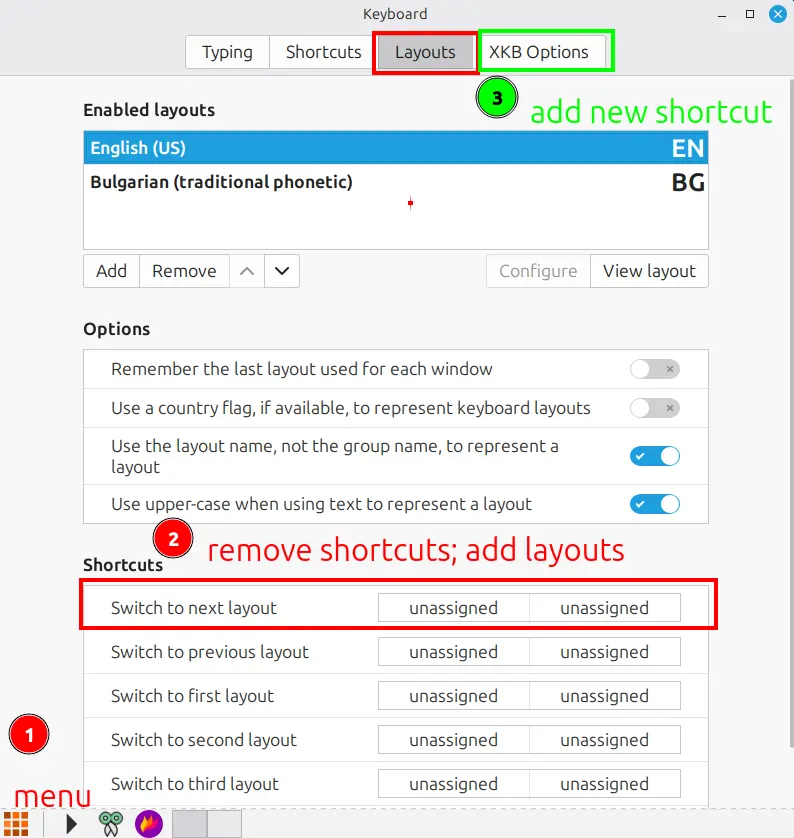
(1) Using XKB Options instead of Layouts tab
- Disable shortcuts in Layouts tab first
- System Settings
- Keyboard
- Layouts
- Disable all shortcuts
Then use XKB options:
- System Settings
- Keyboard
- XKB Options
- Switching to another layout
(2) Add visual indicator with LED
XKB Options
Use keyboard LED to show alternative layout
So let's see several approaches to fix keyboard layout switching issues in Linux Mint 22.3.
The Problem
New feauture in version 22.3 cause the change
One of the new features in LM 22.3 seems to case the issue related to Cinnamon 6.6:
Improved support for keyboard layouts and IM
Cinnamon 6.6 features improved support for keyboard layouts and input methods.
In the past, the keyboard settings and the keyboard applet only handled traditional layouts.
Going forward, traditional layouts and IBus input methods will be presented in the keyboard settings alongside each other, as if they were the same.
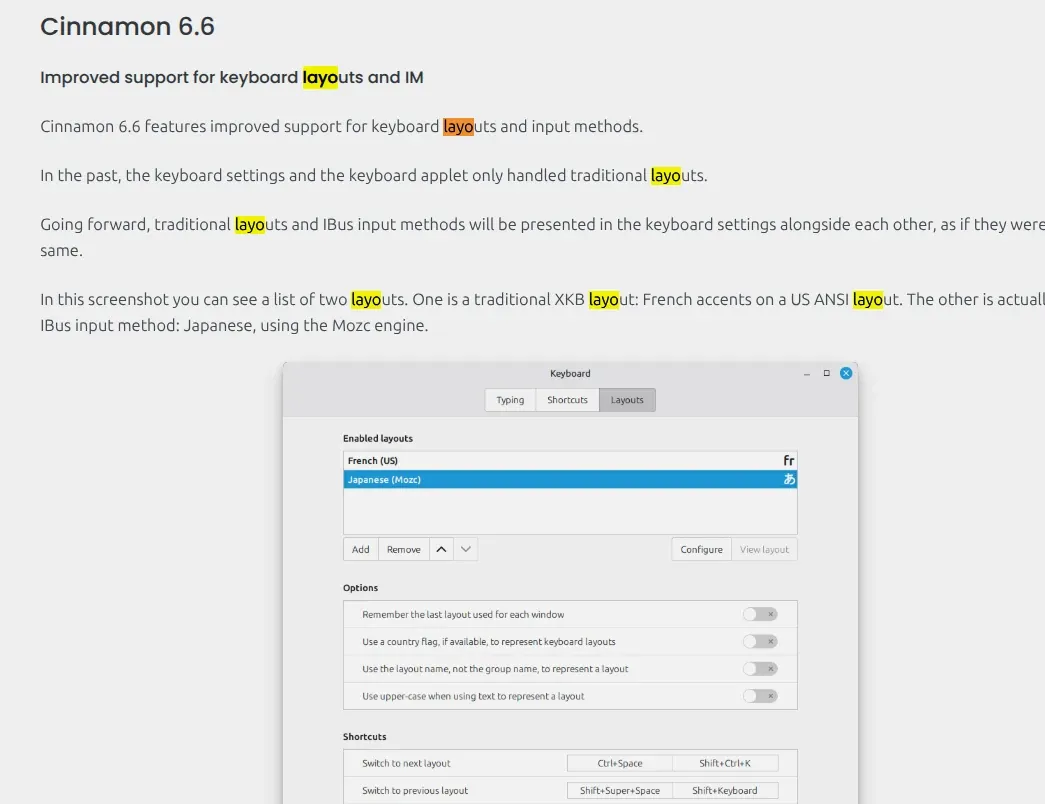
In this screenshot you can see a list of two layouts. One is a traditional XKB layout: French accents on a US ANSI layout. The other is actually an IBus input method: Japanese, using the Mozc engine.
Improved support for keyboard layouts and IM
Keyboard layout switching issues
After upgrading to Linux Mint 22.3, users experience issues with keyboard layout switching shortcuts like Alt+Shift or Ctrl+Shift. The symptoms include:
- Quick switching - Never works
- Normal switching - 50%
- Slow pressing - Almost always works
P.S. Key order matters - i.e. Alt+Shift - first Alt should be pressed.
The issue appears to be related to how the keyboard settings handle shortcuts in the new version.
Missing layouts
After the migration additional layouts are missing so they need to be added manually.
Understanding the Issue
The keyboard layout switching in Linux Mint 22.3 has two different configuration locations:
- Layouts Tab - The traditional interface for setting layout shortcuts
- XKB Options Tab - Lower-level X Keyboard Extension options
When shortcuts are configured in both locations, conflicts can occur causing the inconsistent behavior described above.
1: Solution Using XKB Options
The solution is to disable shortcuts in the Layouts tab and configure them in XKB Options instead.
- Disable shortcuts in Layouts tab first
- System Settings
- Keyboard
- Layouts
- Disable all shortcuts
- Then use XKB options:
- System Settings
- Keyboard
- XKB Options
- Switching to another layout
- Available options include:
- Alt+Shift
- Ctrl+Shift etc
Result: The keyboard layout switching now works consistently without delays or failures.
2: Add Visual Indicator with LED
Some keyboards have more more than 1 led indicator. To make layout switching more visible, you can enable a keyboard LED indicator:
- XKB Options
- Use keyboard LED to show alternative layout
This will:
- Light up LED when alternative layout is active
- Turn off LED when primary layout is active
3: Troubleshooting Common Issues
If the solution above doesn't work, try these additional steps:
Reset keyboard configuration:
dconf reset -f /org/cinnamon/desktop/keybindings/
Check for conflicting shortcuts:
# View all keyboard shortcuts
gsettings list-recursively | grep -i switch
Restart Cinnamon:
# Press Alt+F2 and type:
r
# Then press Enter
Clear keyboard cache:
rm -rf ~/.config/ibus
rm -rf ~/.cache/ibus
For more details check: Troubles changing keyboard layout
Kernel Version Considerations
This solution works across different kernel versions:
# Check your kernel version
uname -r
Tested configurations:
- 6.8.0-90-generic (upgrade path 22.2→22.3) ✓
from the other articles:
- Kernel 5.15 (fresh install) ✓
- Kernel 6.1 (default 22.3) ✓
Resources
- alt + shift to change keyboard layout sometimes doesn't work
- 22.3 Keyboard Layout Configue is disabled
- New Features in Linux Mint 22.3 'Zena' - Linux Mint
- Linux Mint 22.3 Release Notes - Linux Mint