


In this guide, I'll show you how to fix common printer problems in Linux Mint (2026 edition)
Most of these solutions will also work on Ubuntu.
You will get answers to:
- Printer not connected
- Linux Mint not printing
- Wrong size and scaling
- Mirror printing
- Printer problems and solutions for PDFs
- Common printer problems and solutions
Previous article can be found here: How to Setup Printer and Fix Printing Problems in Linux Mint
Printing and Scanning since Linux Mint 21 – and the 2026 Landscape
Since Linux Mint 21, IPP (Internet Printing Protocol) has been the default. This is known as driverless printing and scanning: printers and scanners are detected automatically and communicate via a standard protocol without vendor drivers.
In 2026, this approach is more important than ever, but it is also changing:
- CUPS 3.0 is now available (stable since January 2026). CUPS 3.x removes legacy PPD‑based drivers entirely. Non‑driverless printers must be supported through Printer Applications that expose them as IPP devices.
- Linux Mint 22.3 still ships with CUPS 2.4.x, which retains some backwards compatibility for older drivers. However, Linux Mint 27 (late 2026) will move to the newer stack, so it is wise to prefer driverless printing wherever possible.
If your printer or scanner does not work properly with driverless printing, you can disable it by removing the ipp-usb and sane-airscan packages, then install the manufacturer’s driver.
apt remove ipp-usb sane-airscan
Note: HPLIP is installed by default, but the version matters. In 2026 the current release is HPLIP 3.26.6 (September 2026). Linux Mint 22.x is officially supported by HPLIP up to version 3.26.6, but Ubuntu 26.04 / Mint 27 are not yet officially supported by that installer. For newer HP printers on Mint 22.3, the system’s default CUPS driver may actually work better than the HPLIP package.
For more information on printing and scanning: Printers and Scanners in Linux Mint.
Printer not connected
This error might be related to several reasons:
- Incorrect connection
- Ensure the USB cable is plugged in securely.
- Test a different USB port.
- Test on a different computer or Linux Mint version.
- Driver / detection issues
- Check the manufacturer’s driver instructions for your model.
- For HP, verify whether HPLIP or the built‑in CUPS driver is more appropriate.
- Printer not configured
- See the “How to add a printer” section below.
- Network issues
- Ensure the printer and the computer are on the same network.
- In 2026, mDNS/Avahi must be running for many network printers to be discovered. Check with:
If it is not running, start and enable it:systemctl status avahi-daemonsudo systemctl start avahi-daemon sudo systemctl enable avahi-daemon
Linux Mint not printing (2026-specific fixes)
If the printer is connected but not printing, start with the basics:
- Reset printer settings (sometimes LM settings block printing).
- Reset the printer itself.
- Check the printer queue and clear any stuck jobs.
- Verify the correct destination is chosen in the printing program.
In 2026, three additional issues are especially common on Linux Mint 21.x and 22.x:
1. CUPS service stopped or crashed
After a system update or an interrupted driver installation, CUPS may stop.
systemctl status cups.service
If it is stopped or failed:
sudo systemctl restart cups.service
sudo systemctl enable cups.service
If it fails to restart, inspect the logs:
journalctl -xeu cups.service | tail -30
A corrupted cupsd.conf or a port 631 conflict can prevent CUPS from starting.
2. Expired CUPS PKI certificate
An expired certificate can make the CUPS web interface unreachable and prevent the print dialog from finding local printers. This is a known issue on Mint 21.3 and 22.x.
Check by opening http://localhost:631 in a browser. If you see a TLS/certificate error, remove the old certificate and restart CUPS:
sudo rm -f /etc/cups/ssl/server.crt /etc/cups/ssl/server.key
sudo systemctl restart cups.service
A fresh certificate will be generated automatically.
3. Bug in recent CUPS updates (Mint 22.3)
Some users on Mint 22.3 have reported CUPS crashes after updating to certain CUPS 2.4.7 packages, particularly when selecting older .ppd drivers. If you encounter this, a temporary workaround is to downgrade to a previous CUPS package and hold it. This is a distribution‑specific bug that is best tracked in the Linux Mint forums or Launchpad.
How to add a printer in Linux Mint
To configure a printer in Linux Mint 22.3:
- Open the Menu → Administration → Printers.
- Press the Add button.
- Select your printer from the list.
- If it is missing, click Find Network Printer.
- Configure settings as needed (paper size, resolution, colour mode).
- Print a test page.
If the graphical tool fails to detect a USB printer, the CUPS web interface often gives more control:
- Open
http://localhost:631. - Go to Administration → Add Printer.
- Log in with your username and password (sudo user).
- Select the printer (USB printers appear as
USB#001, etc.). - Choose a driver:
- Prefer IPP Everywhere or Driverless if available.
- For many HP/Dell/Xerox printers, Generic PCL Laser Printer is a safe fallback.
- For inkjets, Generic IPP Everywhere works well in 2026.
How to set up a printer (manual)
After clicking Add, you may need to select:
- Select device – e.g., Generic CUPS.
- Choose Driver – “Generic” is recommended; “Text Only” for basic text.
- Select Printing Options – choose page size, etc.
- Printer description.
- Press Apply.
With CUPS 3.x on the horizon, manual PPD selection will become less common. The goal is to let the printer describe itself via IPP.
Wrong size and scaling
Sometimes printers produce the wrong scale, size, columns, or margins. To fix size and scaling issues in Mint:
- Open Printers.
- Right‑click the printer → Printer properties.
- Printer Options tab → General section:
- Set Media Size (usually A4).
- Adjust Left, Right, Top, and Bottom Margin.
- Job Options tab → Image Options:
- Change Scaling.
- Set DPI.
- Common Options:
- Adjust Pages per side.
You can reset these settings if needed.

Mirror printing
Mirror printing is usually caused by a changed default printer setting.
- Open Printers.
- Right‑click the printer → Printer properties.
- Go to Job Options → Image Options.
- Uncheck Mirror.
Printer problems and solutions for PDFs
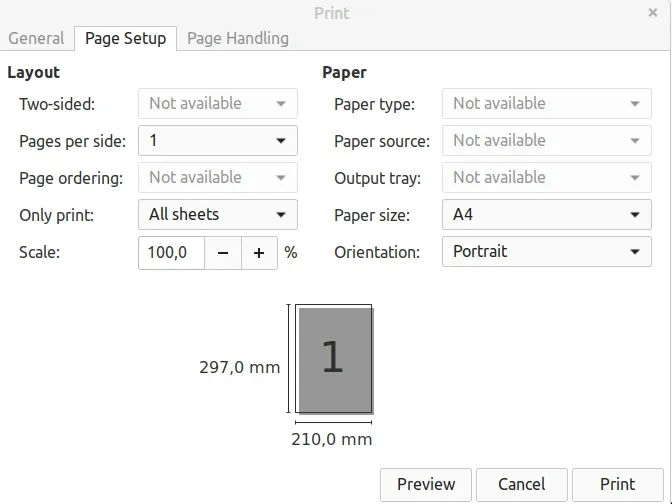
If PDF printing is problematic, adjust the PDF print settings:
- Open the PDF file.
- Press CTRL + P (Print setup).
- Go to the Page Setup tab.
- Check and change:
- Scale
- Pages per side
- Paper size
- Orientation
- Preview the result before printing.
Summary
In this updated guide, we covered how to add and set up a printer in Linux Mint, when additional drivers are still needed, and the most common printing problems with solutions for 2026.
The key takeaway for 2026 is to embrace driverless IPP printing wherever possible. CUPS 3.x is removing the old PPD‑based driver model, and Linux Mint 27 (late 2026) will fully adopt that modern stack. For the current LTS release, Linux Mint 22.3, most printers work out of the box, but CUPS service issues, certificate expiry, and HPLIP compatibility are the most frequent stumbling blocks. When problems arise, the CUPS web interface (http://localhost:631) and the terminal commands above will resolve the vast majority of cases.