


Python Multiline Comments: How to Comment Multiple Lines in Python (2026)
Last updated: June 2026
Python has several ways to write a multiline comment or comment out multiple lines of code. This guide covers every approach — from the recommended # style to triple-quoted strings, IDE shortcuts, and modern tooling for 2026.
Quick Answer
The most widely used python multiline comment uses # at the start of each line:
# This is a
# multi line comment in Python
# spanning several lines
Python does not have a native block comment syntax (unlike /* ... */ in Java or C). Instead, the community has settled on two main approaches covered below.
Method 1: Multiline Comment Python with # (Recommended)
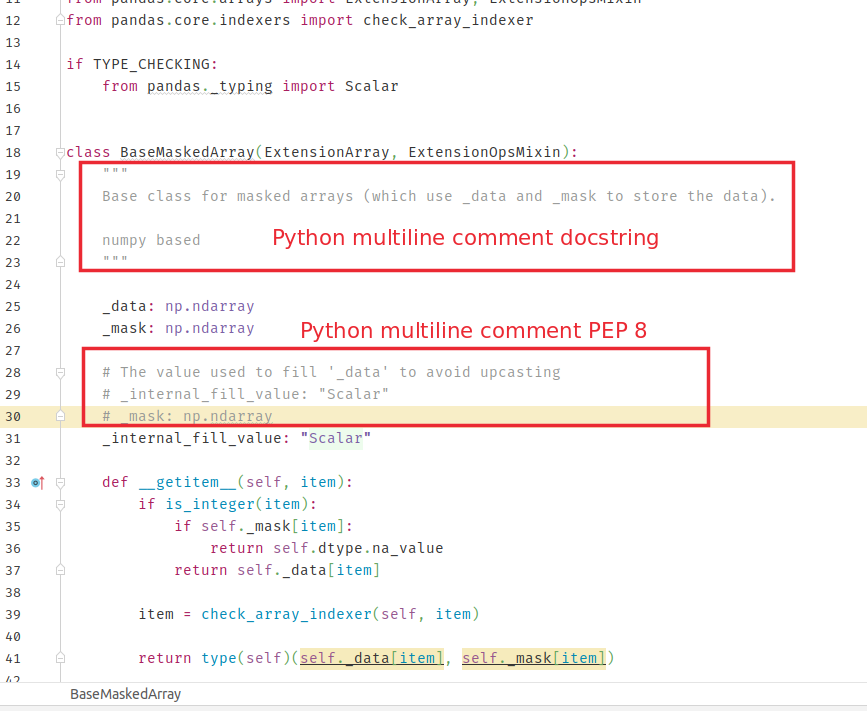
PEP 8 — the official Python style guide — recommends using # for every comment line. This is also the default behaviour of all major Python IDEs like PyCharm, Sublime Text, and VS Code.
# This is the recommended way
# to write a multiline comment in Python.
# Each line starts with a hash symbol.
This is the standard multi line comment in Python used by the wider community. It is unambiguous, consistent with single-line comments, and supported by all linters and formatters (Ruff, Black, Flake8).
Method 2: Multiline Comment in Python with Triple Quotes
Guido van Rossum (the Python creator, Python BDFL) once shared a tip on Twitter/X:
"Python tip: You can use multi-line strings as multi-line comments. Unless used as docstrings, they generate no code! :-)"
— @BSUCSClub
According to this tip, multiline comments in Python can start with ''' and end with '''. They are created simply by placing text inside triple-quoted strings — both ''' and """ have valid syntax in Python.
Triple single-quote comment
'''
This is a multiline comment in Python
using triple single quotes.
It is ignored by the interpreter
as long as it is not used as a docstring.
'''
Triple double-quote comment
"""
This is another way to write
a multiline comment in Python.
Both examples have valid syntax.
"""
Important: If placed at the top of a function, class, or module, Python treats triple-quoted strings as a docstring, not a comment. More on that distinction below.
Python Multiline Comments vs. Docstrings
This is a common source of confusion for beginners. A docstring is a triple-quoted string in the first statement of a module, class, method, or function. It is accessible at runtime via __doc__. Everything else is just a string literal acting as a comment.
Single-line docstring
def is_palindrome(word):
    """Check if word is a palindrome."""
    return str(word) == str(word)[::-1]
Multiline docstring
def complex(real=0.0, imag=0.0):
    """Form a complex number.

    Keyword arguments:
    real -- the real part (default 0.0)
    imag -- the imaginary part (default 0.0)
    """
    if imag == 0.0 and real == 0.0:
        return complex_zero
Many projects and organisations use this style of docstring when they want comprehensive documentation. The image below shows the difference between a multiline comment and a docstring in practice:

PEP 257 best practices for docstrings:
- Always use triple double-quotes
""", even for one-liners. - One-liners: keep the closing
"""on the same line. - Multiline: closing
"""goes on its own line. - Describe what the function does, not how.
How to Comment Multiple Lines in Python — IDE Shortcuts (2026)
For commenting several lines in the most popular IDEs, select the lines you want and then press the shortcut below.
| IDE / Editor | Comment / Uncomment |
|---|---|
| VS Code | Ctrl + / (Windows/Linux) · Cmd + / (Mac) |
| PyCharm | Ctrl + / (Windows/Linux) · Cmd + / (Mac) |
| Cursor | Ctrl + / (Windows/Linux) · Cmd + / (Mac) |
| Zed | Ctrl + / (Windows/Linux) · Cmd + / (Mac) |
| Sublime Text | Ctrl + / |
| Eclipse | Ctrl + / |
| Atom | Ctrl + / |
| IDLE | Ctrl + Alt + 3 (comment) · Ctrl + Alt + 4 (uncomment) |
| Notepad++ | Ctrl + Q |
| Vim / Neovim | Ctrl + V to select block → I + # + Esc |
This is the default comment toggle for most popular Python IDEs like PyCharm, Sublime, and VS Code.
Python Multi Line Comment in PyCharm — Step by Step
Comment multiple lines
Start with some code you want to temporarily disable:
time.sleep(50 / 1000)   # 50 ms
time.sleep(5)            # 5 secs
time.sleep(60)           # 1 min
time.sleep(60 * 60)      # 1 hour
- Select the lines you want to comment out.
- Press
Ctrl+/(Windows/Linux) orCmd+/(Mac).
Result:
# time.sleep(50 / 1000)   # 50 ms
# time.sleep(5)            # 5 secs
time.sleep(60)             # 1 min
time.sleep(60 * 60)        # 1 hour
Uncomment multiple lines
Same shortcut — it toggles. Select the commented lines and press Ctrl + / again.
Result:
time.sleep(50 / 1000)   # 50 ms
time.sleep(5)            # 5 secs
time.sleep(60)           # 1 min
time.sleep(60 * 60)      # 1 hour
Behaviour with mixed lines (commented + uncommented)
If your selection contains both commented and uncommented lines:
- The first press of
Ctrl+/will comment all lines (adding a second#in front of already-commented lines). - The second press will uncomment all lines (removing only the first comment sign).
Before:
# time.sleep(50 / 1000)   # 50 ms
# time.sleep(5)            # 5 secs
time.sleep(60)             # 1 min
time.sleep(60 * 60)        # 1 hour
After first press:
# # time.sleep(50 / 1000)   # 50 ms
# # time.sleep(5)            # 5 secs
# time.sleep(60)             # 1 min
# time.sleep(60 * 60)        # 1 hour

Delete All Python Comments from a Project (PyCharm)
You can delete all Python comments from your Python project in PyCharm using Find and Replace with Regex (Ctrl + R, enable Regex mode):
| Comment type | Regex pattern | Replace with |
|---|---|---|
Single-line # comments |
.*#.*\n |
(empty) |
| Inline docstrings | """.*""" |
(empty) |
| Multiline docstrings | ([^\(\.]"""[^\(]*)""" |
(empty) |
Always test on a copy of your code first — these patterns can be greedy and may match more than intended.
Using python-minifier (2026)
For a safer, production-ready approach, use python-minifier:
pip install python-minifier
pyminify --remove-literal-statements your_script.py
This removes both # comments and bare triple-quoted string literals safely, without touching your actual string values.
Python Multiline Comments: Summary Table
| Approach | Syntax | PEP 8 recommended? | Notes |
|---|---|---|---|
Consecutive # lines |
# line 1 / # line 2 |
Yes | Community standard |
| Triple double-quotes | """...""" |
With caveats | Avoid at function/class top |
| Triple single-quotes | '''...''' |
With caveats | Same rules as above |
| Docstring | """...""" as first statement |
Yes (for docs) | Accessible via __doc__ |
Video: How to Comment Multiple Lines in Python (PyCharm)
For a visual walkthrough of Python comments in PyCharm — including how to remove or fold all comments — see the video guide on the Softhints YouTube channel.
Frequently Asked Questions
Does Python have a block comment symbol like /* */?
No. Python only has # for single-line comments. A python multi line comment is achieved by repeating # on each line.
Can I use triple quotes as a multiline comment in Python?
Yes, with caveats. Triple-quoted strings placed outside function/class/module definitions are ignored at runtime. But they are not true comments — linters like Ruff may warn about bare string literals, and they do create string objects in some contexts. Use # lines for production clarity.
What is the shortcut to comment multiple lines in Python?
In virtually every modern IDE (VS Code, PyCharm, Cursor, Zed, Sublime Text), it's Ctrl + / on Windows/Linux or Cmd + / on Mac. Select your lines first, then press the shortcut to toggle.
What does PEP 8 say about multiline comments?
PEP 8 recommends using # for all block comments. Each line of a block comment should start with # (hash and a space). Triple-quoted strings are acceptable for docstrings only, not as general python multiline comments.
How do I comment multiple lines in Python without an IDE?
Add # manually at the start of each line. In the terminal, sed can automate this:
# Comment out every line in a file
sed -i 's/^/# /' your_script.py