


I've been using Obsidian for three years, across seven different vaults.
That means I've installed plugins because they looked interesting, built workflows around them, abandoned them, migrated vaults, replaced some and eventually kept a much smaller group.
So this isn't a list of every plugin you could install.
It's a list of the best Obsidian plugins I've actually found useful, including the ones that survived multiple vaults.
Quick node
All those plugins are installed only on the main vault. I keep the
And there's one plugin that deserves special attention:
Obsidian Templater.
Quick security note
Obsidian's community ecosystem has grown into a huge collection of extensions, and the official Community directory now makes it possible to browse and filter plugins across many categories. Obsidian itself says community plugins are third-party code, so maintenance and trust matter when deciding what to install. (Obsidian)
Quick Answer: What Are the Best Obsidian Plugins in 2026?
If you don't want to read the entire list, these are the plugins I'd investigate first:
| Plugin | Best for |
|---|---|
| Templater | Dynamic templates and automation |
| Dataview | Turning notes into databases and dashboards |
| Tasks | Managing tasks across your vault |
| Omnisearch | Powerful vault search |
| Excalidraw | Visual thinking and diagrams |
| Calendar | Navigating daily notes |
| QuickAdd | Fast capture and automation |
| Periodic Notes | Weekly/monthly planning |
| Tracker | Habit and data tracking |
| Style Settings | Customizing Obsidian |
These aren't necessarily the right plugins for every Obsidian user. In fact, one of the biggest lessons from using seven vaults is that you shouldn't install a plugin just because someone calls it one of the best Obsidian plugins.
Install it when it solves a problem you actually have, saves time or you get value.
1. Obsidian Templater: The Plugin I Keep Coming Back To
If there is one plugin I would put near the center of an advanced Obsidian setup, it's Templater.
Templater extends Obsidian's built-in template functionality with a much more powerful templating language. It can insert variables, execute functions, prompt for information and run JavaScript or system commands. The official plugin listing currently shows more than 5.5 million downloads, version 2.25.0, and recent maintenance. (Obsidian Community)
That makes Templater very different from simply having a template like:
    # Meeting

    Date:

    Attendees:

    Notes:

    Action items:
A static template gives you the same structure every time.
Templater can generate the structure dynamically.
For example:
    ---
    title: <% tp.file.title %>
    created: <% tp.date.now("YYYY-MM-DD") %>
    type: meeting
    ---

    # <% tp.file.title %>

    ## Attendees

    ## Notes

    ## Tasks
Now the template knows something about the note it's creating.
That's where Templater becomes interesting.
2. What Can You Do With Obsidian Templater?
This is the section I'd deliberately expand because “Obsidian Templater” gives the article a second search topic rather than simply mentioning the plugin once.
1. Automatically insert dates
<% tp.date.now("YYYY-MM-DD") %>
Instead of manually typing the date, Templater generates it.
2. Use the filename inside a note
<% tp.file.title %>
This is useful when creating structured notes.
For example:
# <% tp.file.title %>
If the note is called:
Atomic Habits
the heading becomes:
# Atomic Habits
3. Ask questions when creating a note
You can make Templater ask for information.
That makes note creation interactive.
For example:
Project name?
Client?
Deadline?
Status?
The answers can then be inserted into the note automatically.
4. Create different templates for different note types
This is where a serious Obsidian vault starts becoming interesting.
You might have:
Templates/
├── Daily Note.md
├── Project.md
├── Meeting.md
├── Book.md
├── Person.md
├── Article.md
└── Research.md
Then every note type gets a consistent structure.
After seven vaults, this is one of the biggest advantages I've found with templates:
I don't have to remember how I structure a note. The vault remembers for me.
3. Templater vs Obsidian's Built-in Templates
Obsidian already has a built-in Templates core plugin. The official documentation lists Templates among Obsidian's core plugins. (Obsidian)
So why install Templater?
Built-in Templates
Good for:
- inserting predefined text
- simple note structures
- dates
- basic templates
- minimal setups
Templater
Better suited to:
- dynamic values
- prompts
- conditional logic
- JavaScript
- automation
- advanced note creation
- complex workflows
You don't need Templater simply because you're using Obsidian.
But once your templates start becoming logic rather than text, Templater becomes much more interesting.
And that's exactly why I'd give it prominent placement in this article.
4. My 36 Best Obsidian Plugins After 3 Years
| Plugin | Best for | Why I use it | Who should install it? |
|---|---|---|---|
| Templater | Automation | Dynamic note creation | Almost anyone building a structured vault |
| Dataview | Databases | Dynamic queries and dashboards | Metadata-heavy vaults |
| Tasks | Tasks | Query tasks anywhere | Project/productivity users |
| Omnisearch | Search | Finds information quickly | Large vaults |
| Excalidraw | Visual thinking | Diagrams and sketches | Visual thinkers |
| Calendar | Daily notes | Date-based navigation | Journal users |
| Periodic Notes | Reviews | Weekly/monthly notes | Journal/productivity users |
| Tracker | Data | Habit/data visualization | Quantitative tracking |
| Style Settings | Customization | Theme configuration | Customization enthusiasts |
| Banners | Design | Visual note headers | Dashboard users |
| Charts | Visualization | Graphs from note data | Data-heavy vaults |
| Chronology | History | Browse notes chronologically | Large/long-lived vaults |
| Chronos Timeline | Timelines | Timeline visualization | Research/project users |
| Colored Tags | Tags | Visual tag hierarchy | Tag-heavy vaults |
| Daily Note Outline | Journaling | Navigate daily notes | Daily-note users |
| Day and Night | Themes | Automatic light/dark mode | Anyone using scheduled themes |
| Editing Toolbar | Editing | Formatting controls | Markdown beginners |
| Editor Width Slider | Writing | Control text width | Long-form writers |
| Emoji Toolbar | Emoji | Fast emoji insertion | Emoji users |
| File Explorer Note Count | Navigation | Folder counts | Large vaults |
| Iconize | Navigation | File/folder icons | Visual organizers |
| Advanced Slides | Presentations | Markdown presentations | Presentation-heavy users |
| Marp Slides | Presentations | Markdown → slides | Technical presenters |
| Mind Map | Brainstorming | Visual Markdown hierarchy | Visual thinkers |
| Open Link With | Browsing | Browser selection | Multi-browser users |
| Open with | External apps | Open files elsewhere | Advanced workflows |
| Recent Files | Navigation | Recently opened notes | Everyone who revisits notes |
| Recent Notes | Navigation | Recently edited notes | Large active vaults |
| RSS Dashboard | Information | RSS inside Obsidian | Research/information users |
| Shrink Pinned Tabs | UI | More tab space | Heavy tab users |
| Table Generator | Tables | Faster Markdown tables | Table-heavy users |
| Tagged Documents Viewer | Tags | Browse tagged notes | Tag-heavy vaults |
| Terminal | Development | Shell inside Obsidian | Developers |
| Weekly Routine Planner | Planning | Recurring weekly schedule | Routine-focused users |
5. My complete list with details
| # | Plugin | What I use it for | Why it's in my vault | 2026 status |
|---|---|---|---|---|
| 1 | Advanced Slides | Markdown presentations | Useful when notes need to become presentations without leaving Obsidian | ⚠️ Specialized / check alternatives |
| 2 | Auto Link Title | Better web links | Automatically turns pasted URLs into titled Markdown links | ⚠️ Mature, last major release older |
| 3 | Banners | Note covers | Makes important notes and dashboards visually distinct | 🟢 Active |
| 4 | Calendar | Daily-note navigation | The quickest way to navigate a journal by date | 🟢 Mature |
| 5 | Charts | Data visualization | Useful when a table isn't enough and I need to see a trend | ⚠️ Mature / slow updates |
| 6 | Chronology | Timeline of notes | Lets me explore what I created or changed around a particular time | 🟢 Maintained |
| 7 | Chronos Timeline | Timelines | Excellent for projects, historical information and chronological research | 🟢 Active |
| 8 | Colored Tags | Tag styling | Makes large tag systems much easier to scan visually | 🟢 Active |
| 9 | Daily Note Outline | Daily-note navigation | Lets me search across headings, links, tags and tasks in daily notes | 🟢 Maintained |
| 10 | Dashboard navigator | Vault dashboard/search | Gives a dashboard plus powerful file navigation | 🔴 Archived in 2026 |
| 11 | Dataview | Querying notes | Turns Markdown metadata into tables, lists and dashboards | 🟢 Essential |
| 12 | Day and Night | Automatic themes | Switches between light and dark themes on a schedule | 🟢 Active |
| 13 | Editing Toolbar | Formatting | Gives Obsidian a more traditional word-processor-style toolbar | 🟢 Active |
| 14 | Editor Width Slider | Writing width | Quickly changes how wide the editor is | ⚠️ Mature |
| 15 | Emoji Toolbar | Emoji insertion | Much faster than hunting for emojis manually | 🟢 Maintained |
| 16 | Excalidraw | Visual thinking | Diagrams, sketches, systems thinking and visual notes | 🟢 Very active |
| 17 | File Explorer Note Count | Folder statistics | Shows how many files are inside folders | 🟢 Maintained |
| 18 | Iconize | Icons | Adds icons to folders, files and notes | 🔴 End of maintenance |
| 19 | Marp Slides | Presentations | Markdown → presentations | ⚠️ Mature / consider newer forks |
| 20 | Mind Map | Mind maps | Converts Markdown structure into a visual mind map | ⚠️ Mature |
| 21 | Omnisearch | Search | Faster, smarter search across notes and PDFs | 🟢 Active |
| 22 | Open Link With | External browsers | Lets me choose which browser opens a link | ⚠️ Mature |
| 23 | Open with | External applications | Opens notes/files in other desktop applications | ⚠️ Mature |
| 24 | Periodic Notes | Weekly/monthly notes | Extends Daily Notes into a broader time-based system | ⚠️ Mature |
| 25 | Recent Files | Navigation | Quickly returns to recently opened notes | 🟢 Maintained |
| 26 | Recent Notes | Recent-note timeline | Shows recently edited notes grouped by time | 🟢 Active |
| 27 | RSS Dashboard | RSS/YouTube feeds | Keeps information consumption inside the vault | 🟢 Active, but specialized |
| 28 | Shrink pinned tabs | UI | Saves horizontal space when many tabs are pinned | ⚠️ Mature |
| 29 | Style Settings | Appearance | Lets themes/plugins expose their customization options | ⚠️ Mature |
| 30 | Table Generator | Tables | Much faster way to create Markdown tables | ⚠️ Mature |
| 31 | Tagged Documents Viewer | Tag browsing | Shows documents matching selected tags together | ⚠️ Mature |
| 32 | Tasks | Task management | Turns scattered Markdown checkboxes into a queryable task system | 🟢 Essential |
| 33 | Templater | Automation/templates | Dynamic templates and powerful note creation workflows | 🟢 Essential |
| 34 | Terminal | Development | Gives me a terminal directly inside Obsidian | 🟢 Active |
| 35 | Tracker | Habit/data tracking | Turns note data into calendars, charts and statistics | 🟢 Maintained |
| 36 | Weekly Routine Planner | Weekly planning | Visual timetable for recurring weekly routines | 🟢 Active |
A few of those statuses deserve special attention because 2026 changed the story.
1. Advanced Slides
Advanced Slides — Obsidian Community Plugin
Advanced Slides is for creating presentations from Markdown.
The attraction is obvious: your presentation can live alongside the research and notes that produced it.
I'd keep it if presentations are part of your workflow. I wouldn't install it simply because you're experimenting with Obsidian.
My reason:
Research → notes → presentation without moving everything into PowerPoint.
There are also newer slide options in the community ecosystem, so in a brand-new vault I'd compare them before committing.
2. Auto Link Title
This is one of those tiny plugins that solves a tiny problem extremely well.
Paste:
https://example.com/article
and get a properly titled Markdown link.
The plugin can also convert existing raw URLs and replace titles of existing Markdown links.
My reason: less ugly URLs and less manual formatting.
The downside in 2026 is that the current release is relatively old, so I'd call this mature rather than actively evolving.
3. Banners
Banners adds cover images and icons to notes.
It stores banner information in frontmatter, meaning the visual configuration remains part of the Markdown note rather than being some mysterious external database.
My reason: dashboards, home pages, project pages and important reference notes.
It's not an essential knowledge-management plugin.
It's a presentation plugin.
And sometimes presentation matters because you spend thousands of hours looking at the same interface.
4. Calendar
Calendar is one of the plugins I would install almost immediately in a journal-heavy vault.
It gives you a calendar for navigating daily notes and can visualize writing activity. It also integrates with weekly-note workflows.
My reason: I don't want to remember the filename of a note from March 17.
I want to click March 17.
Simple.
5. Charts
Charts turns Markdown tables or CSV data into interactive charts.
This is useful when your vault contains actual quantitative information.
For example:
Month | Articles
Jan   | 12
Feb   | 18
Mar   | 23
Apr   | 16
A table stores the data.
A chart helps you see the pattern.
My reason: data visualization without leaving the vault.
6. Chronology
Chronology is different from Calendar.
Calendar asks:
"What did I write on this date?"
Chronology is more like:
"Show me what happened across my notes during this period."
It provides calendar navigation and timeline/list views based on note creation or modification dates.
My reason: rediscovering old work.
This becomes surprisingly useful once a vault gets large.
7. Chronos Timeline
Chronos is for actually building timelines.
You can define events and date ranges in Markdown and render interactive timelines. It also supports grouping, colors and links to notes.
My reason: research and projects.
If you're writing about:
- history
- product development
- biographies
- project milestones
- company timelines
this is considerably more useful than a simple list of dates.
8. Colored Tags
Colored Tags automatically gives tags different colors and handles nested tags intelligently. It also adjusts contrast for readability.
My reason: visual scanning.
If you have:
#project
#project/client-a
#project/client-b
#research
#research/book
#research/article
plain monochrome tags eventually become a wall of similar-looking text.
Colored Tags gives your tag hierarchy visual distinction.
9. Daily Note Outline
This is much more useful than its name suggests.
It can show headings, links, tags, list items and tasks across multiple daily notes.
My reason: daily notes become an archive rather than a graveyard.
Instead of opening:
2026-01-01
2026-01-02
2026-01-03
...
you can inspect their structure collectively.
10. Dashboard Navigator — The Important 2026 Caveat
This is one I would not blindly recommend anymore.
Dashboard Navigator — GitHub repository
Dashboard Navigator provided vault statistics, recent files, file-type navigation, filtering and search.
But there's an important update:
The repository was archived on March 3, 2026, and the plugin was removed from the Community Plugins directory because the repository was archived.
My reason for keeping it historically: dashboard + navigator.
My 2026 recommendation: don't build a new workflow around it.
11. Dataview
This remains one of the foundational plugins.
Dataview lets you query Markdown metadata and turn your vault into something resembling a database.
For me:
Markdown = storage
Dataview = views
That's the important distinction.
You don't have to physically reorganize your files every time you want another view of your information.
My reason: this is one of the plugins that fundamentally changes what an Obsidian vault can be.
12. Day and Night
Automatically switches your Obsidian theme according to a schedule.
My reason: I don't want to manually change themes.
This is a classic example of a plugin doing one small thing and doing it well.
13. Editing Toolbar
Editing Toolbar gives Obsidian a more traditional formatting toolbar, with commands for formatting, lists, colors, alignment and other editing operations.
My reason: sometimes I want Obsidian to behave more like a conventional writing application.
Especially useful if you're introducing someone to Obsidian who isn't comfortable with Markdown syntax.
14. Editor Width Slider
This one is pure ergonomics.
It adds a slider for editor width and can even define width per file through YAML frontmatter.
My reason: different notes need different layouts.
Long-form writing benefits from a narrow reading width.
Tables and code can benefit from more horizontal space.
15. Emoji Toolbar
Searchable emoji insertion.
That's basically it.
And sometimes that's enough.
It supports fuzzy/semantic searching, recently used emoji and skin tones.
My reason: fast visual markers in notes and tasks.
16. Excalidraw
This is one of the biggest plugins in the entire Obsidian ecosystem, with millions of downloads and active development.
It turns Obsidian into a visual thinking environment:
- diagrams
- architecture
- brainstorming
- systems
- sketches
- visual explanations
- linked drawings
And the drawings remain part of your vault.
My reason: some thoughts are easier to draw than to write.
17. File Explorer Note Count
Adds counts next to folders in the File Explorer, including items in subfolders.
My reason: situational awareness.
It's not transformative.
It's just one of those tiny details that makes a large vault easier to understand.
18. Iconize — Another 2026 Warning
Iconize lets you add icons to files, folders, tabs and notes.
It has been enormously popular.
But the current community page explicitly states:
Project Deprecation and End of Maintenance
So this is another plugin where my historical use doesn't equal my 2026 recommendation.
My reason for using it: navigation and visual hierarchy.
My 2026 view: if starting a new vault, look at actively maintained icon alternatives first.
19. Marp Slides
Marp lets you create slide decks from Markdown and export them to PDF, PPTX and HTML.
There are also newer Marp-based projects/forks in the ecosystem, including Marp Extended and Marp Slides Presenter.
My reason: presentations stay close to the source material.
But this is another plugin where I'd evaluate the current alternatives before starting a new workflow in 2026.
20. Mind Map
Mind Map renders Markdown notes as Markmap mind maps.
My reason: seeing the hierarchy of an idea.
It's particularly useful for:
- article outlines
- course notes
- book structures
- project structures
- brainstorming
If you already use Canvas or Excalidraw extensively, you may not need it.
21. Omnisearch
One of the plugins I would install in a large vault.
Omnisearch uses relevance ranking and can index notes, PDFs, Office documents and images when paired with text extraction.
My reason:
I don't want to remember where I put something.
I want to search for it.
As your vault grows, search becomes more important than folder organization.
22. Open Link With
Lets you choose which browser opens an external link, including custom browser profiles and modifier-key combinations.
My reason: different browsers for different contexts.
For example:
- normal browsing
- work browser
- private browser
- research browser
Very niche, but excellent if you need it.
23. Open with
Open with — Obsidian plugin reference
This is different from Open Link With.
Open with lets you open notes in external applications.
That makes Obsidian a little less isolated.
For example:
Obsidian note
     ↓
External application
My reason: not every file should be edited in Obsidian.
24. Periodic Notes
Extends the Daily Notes concept into weekly and monthly notes.
I like the underlying philosophy:
Daily
 ↓
Weekly
 ↓
Monthly
You can use each level for a different type of reflection.
My reason: turning individual journal entries into a rhythm of review.
25. Recent Files
A sidebar containing recently opened files.
It supports exclusions, previews, drag-and-drop and other basic navigation features.
My reason: most of the time I'm working on the same 5–20 notes.
I don't need to search for those notes every time.
26. Recent Notes
Recent Notes — Obsidian Community Plugin
Recent Notes is different from Recent Files.
It focuses on recently edited notes and organizes them into time periods such as Today, Yesterday and This Week.
My reason: rediscovering what I was actually working on.
That's subtly different from asking what I opened.
27. RSS Dashboard
RSS Dashboard — GitHub repository
This is for people who want their information feeds closer to their knowledge base.
The project supports RSS feeds and media consumption and can save items as Markdown. Its 2026 development has also included work on the Community Plugin Audit and security-related changes.
My reason: turning consumption into something I can actually archive and reference.
This is one I would call workflow-specific, not universally useful.
28. Shrink Pinned Tabs
Tiny plugin.
Tiny problem.
Very nice solution.
It reduces the size of pinned tabs to save screen space and can hide their titles.
My reason: I keep too many tabs open.
If you don't, you probably don't need this.
29. Style Settings
Style Settings exposes CSS customization options from themes, snippets and plugins in one settings interface.
My reason: customization without manually editing CSS.
One warning:
Don't spend three days customizing Obsidian instead of actually using Obsidian.
I've learned that one the hard way.
30. Table Generator
Makes Markdown tables much easier to create and edit.
My reason: Markdown tables are annoying to type manually.
That's enough.
Not every plugin needs to change your life.
Sometimes it just needs to save you 30 seconds every day.
31. Tagged Documents Viewer
Shows documents containing selected tags together in a scrollable view.
My reason: tag-based browsing without constructing a Dataview query.
It's especially useful when you think:
"Show me everything I've written about this."
rather than:
"Give me a database report."
32. Tasks
This is one of my core plugins.
Tasks lets you query tasks across the entire vault, filter them, handle due dates and recurring tasks, and mark them complete from query results.
The important idea is:
Task lives where the context lives.
A project task can remain in the project note.
A meeting task can remain in the meeting note.
Tasks then gives you the global view.
That's much better for me than forcing every task into one giant "Tasks" page.
33. Templater
Another core plugin.
Templater creates dynamic templates using variables, functions and JavaScript.
This lets you build things like:
New project
     ↓
Template
     ↓
Ask project name
     ↓
Create metadata
     ↓
Create links
     ↓
Create folder structure
My reason: consistency and automation.
One important warning: Templater can execute arbitrary JavaScript and system commands, so scripts should only come from sources you trust.
34. Terminal
Terminal integrates shells and consoles into Obsidian, supports multiple profiles, terminal history, keyboard shortcuts and integrated terminals.
My reason: if Obsidian is my workspace, why constantly leave it to run commands?
This is particularly useful if your vault overlaps with:
- programming
- Git
- scripts
- automation
- local AI tools
- publishing
35. Tracker
Tracker turns information in your notes into visual data.
You can track numbers, occurrences and other fields and visualize them with calendars, charts and tables.
For example:
---
sleep: 7.5
exercise: true
mood: 8
---
Over time, that becomes data you can analyze.
My reason: finding patterns instead of relying entirely on memory.
36. Weekly Routine Planner
This is one of the newer plugins in your list.
It provides a timetable-style editor for recurring weekly routines and stores the routine as Markdown inside a weekly-routine block.
My reason: planning recurring structure rather than individual appointments.
It's particularly interesting if you think in terms of:
Monday
08:00 — Exercise
09:00 — Deep work
12:00 — Lunch
13:00 — Meetings
...
rather than a conventional calendar.
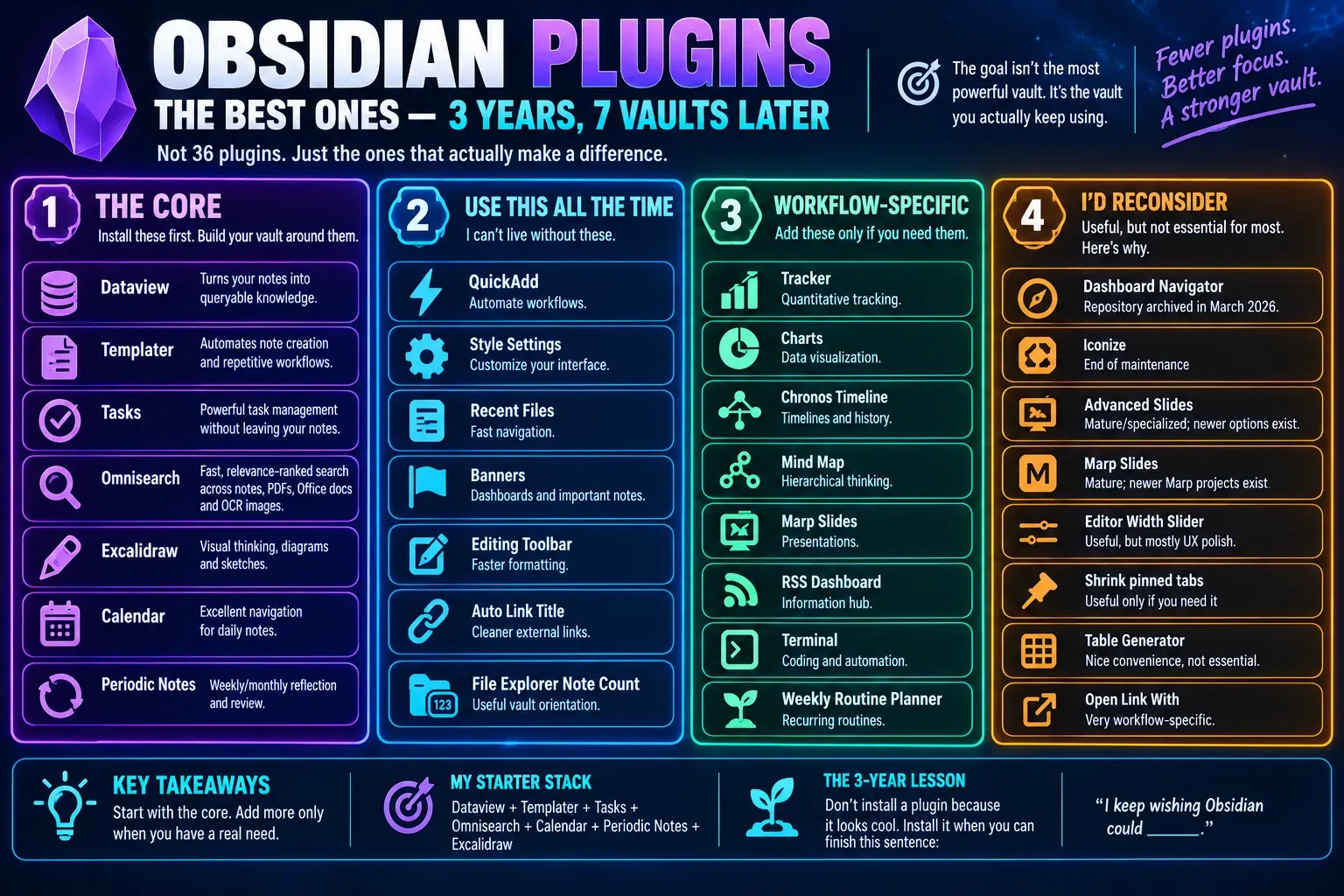
6. So What Would I Actually Install in a New Vault in 2026?
This is where the list gets more interesting.
My 36 plugins are not the same thing as my 36-plugin recommendation.
After three years and seven vaults, I'd divide them into four groups.
The core
These are the ones I'd seriously consider building a vault around:
| Plugin | Why |
|---|---|
| Dataview | Query your knowledge |
| Templater | Automate note creation |
| Tasks | Manage tasks inside context |
| Omnisearch | Find things |
| Excalidraw | Think visually |
| Calendar | Navigate time-based notes |
| Periodic Notes | Weekly/monthly reflection |
The "I use this all the time" group
| Plugin | Why |
|---|---|
| QuickAdd | Workflow automation |
| Style Settings | Interface customization |
| Recent Files | Navigation |
| Banners | Important notes/dashboards |
| Editing Toolbar | Faster formatting |
| Auto Link Title | Cleaner links |
| File Explorer Note Count | Vault orientation |
Workflow-specific
| Plugin | Useful when... |
|---|---|
| Tracker | You track quantitative data |
| Charts | You work with datasets |
| Chronos Timeline | You work with timelines |
| Mind Map | You think in hierarchies |
| Marp Slides | You create presentations |
| RSS Dashboard | Obsidian is your information hub |
| Terminal | You code/automate |
| Weekly Routine Planner | You plan recurring routines |
Plugins I would reconsider in a fresh 2026 vault
| Plugin | Why |
|---|---|
| Dashboard Navigator | Repository archived in March 2026 |
| Iconize | End of maintenance |
| Advanced Slides | Mature/specialized; newer options exist |
| Marp Slides | Mature; newer Marp projects exist |
| Editor Width Slider | Useful, but mostly UX polish |
| Shrink pinned tabs | Useful only if you need it |
| Table Generator | Nice convenience, not essential |
| Open Link With | Very workflow-specific |
6. Frequently Asked Questions - Obsidian plugins and Templater
What are the best Obsidian plugins in 2026?
For a general-purpose vault, plugins worth investigating include Templater, Dataview, Tasks, Omnisearch, Excalidraw, Calendar and Periodic Notes. The right combination depends on what you use Obsidian for.
Is Obsidian Templater worth using?
Templater is particularly useful when Obsidian's built-in Templates plugin isn't enough. It adds dynamic variables, functions, prompts, JavaScript and system-command capabilities. (Obsidian Community)
What is the difference between Obsidian Templates and Templater?
Obsidian Templates is a built-in core plugin for inserting predefined templates. Templater is a community plugin that adds substantially more dynamic behavior and automation. (Obsidian)
Is Templater difficult to learn?
The basic features are relatively approachable, but Templater becomes considerably more advanced once you start using JavaScript. You don't need to learn JavaScript to use simple Templater templates.
What is the best Obsidian plugin for automation?
Templater is one of the main choices for dynamic note creation and automation, while QuickAdd is particularly useful for capture workflows and chaining actions. Recent 2026 plugin roundups commonly place both in the automation/templating category. (Sébastien Dubois)
What is the best Obsidian plugin for databases?
Dataview is one of the most established choices for querying metadata and generating dynamic lists, tables and dashboards.
What is the best Obsidian plugin for tasks?
Tasks is designed specifically for querying and managing Markdown tasks across an Obsidian vault.
How many Obsidian plugins should I install?
There isn't a useful magic number. Start with the smallest set that solves your actual problems. Community plugins execute third-party code, so every additional plugin also adds something you need to maintain and trust. (Obsidian)