


In this short guide, we will learn how to find the file path a desktop shortcut points to in Linux Mint.
Problem
Desktop shortcuts (.desktop files) in Linux Mint don't show the actual file path directly. Right-clicking reveals limited info, and copying a path from the Files GUI often adds special characters — quotes, escape sequences, or trailing spaces.
1. Using the Right-Click Menu (Easiest)
Desktop shortcut
- Right-click the desktop shortcut
- select Properties
- open the General tab
- Look for the Command or Location field.
This shows the target path, but may still include arguments or quotes.
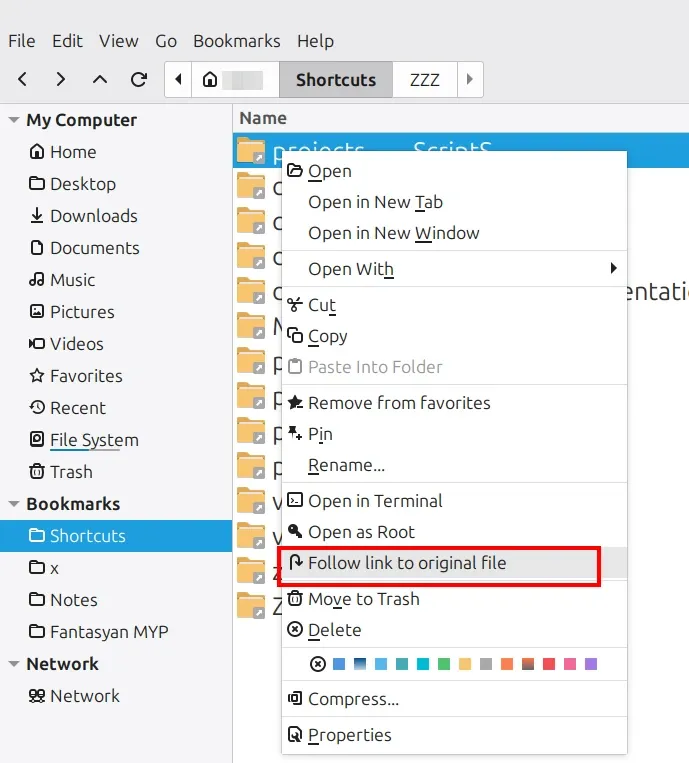
follow link to the original file
This will work only on the shortcut itself. It won't be shown on the childs.
- right click the shortcut
- follow link to the original file
2. Finding the Original File from a Symlink
If your shortcut links to a symlink, use:
readlink -f ~/Desktop/MyApp.desktop
This resolves the full absolute path, stripping any symlink layers.
3. Using the Terminal (Most Accurate)
Open Terminal and run:
grep -i "^Exec" ~/.local/share/applications/MyApp.desktop
Or for a desktop shortcut:
cat ~/Desktop/MyApp.desktop | grep Exec
This outputs the raw, clean path — no hidden characters, no formatting issues.
4. Common Shortcut Locations
Here you can find the most common shortcut locations in Linux Mint.
| Location | Path |
|---|---|
| User desktop | ~/Desktop/ |
| User apps | ~/.local/share/applications/ |
| System-wide apps | /usr/share/applications/ |
5. Tips for Finding Paths
- Prefer the terminal when the path needs accuracy
- Use
xdg-opento verify the path actually opens the right target - To share
.desktopfiles across a team, standardize paths using/opt/or/usr/local/to avoid per-user path drift