


If you use Ubuntu or Linux Mint, you may occasionally encounter a confusing error when installing a .deb application through the graphical package installer:
Error: Dependency is not satisfiable: libglib2.0-0 (>=2.37.3)
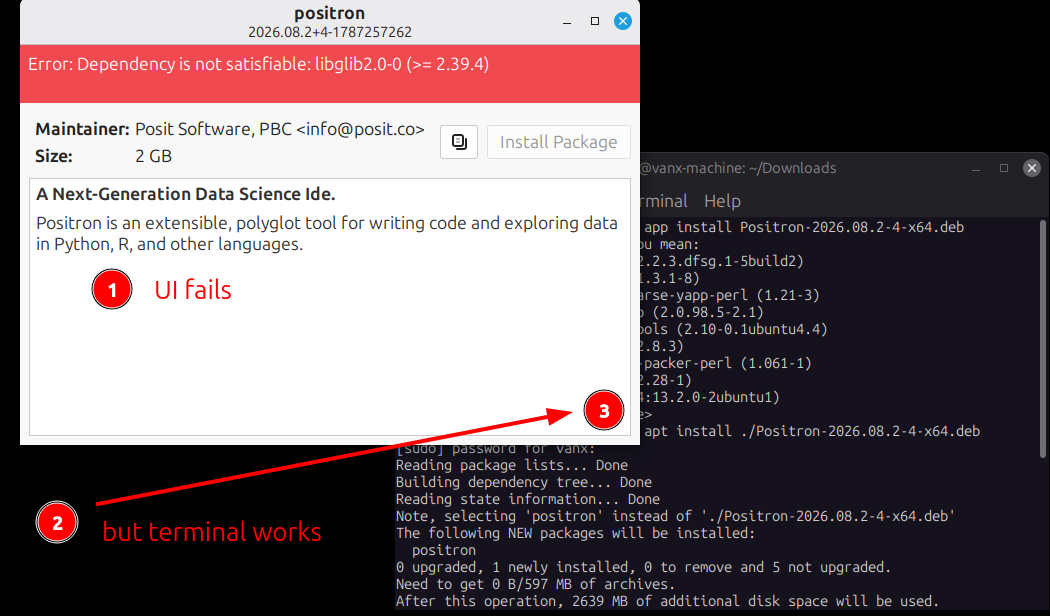
The confusing part is that the required GLib library may already be installed on your system — and the application may install perfectly when you use the Terminal.
This problem has been reported with applications such as Vivaldi and Positron, particularly on systems based on Ubuntu 24.04 and Linux Mint 22.x. The Positron issue, for example, specifically reports the libglib2.0-0 (>=2.37.3) error when installing a .deb through GDebi. (GitHub)
The good news is that, in many cases, you do not need to manually install GLib, downgrade packages, or modify your system libraries.
The simplest solution is to install the .deb package using apt from the Terminal.
The quick fix
Open a Terminal, navigate to the directory containing your .deb file, and run:
sudo apt install ./your-application.deb
For example:
cd ~/Downloads
sudo apt install ./vivaldi-stable_7.1.3570.60-1_amd64.deb
Replace the filename with the actual .deb file you downloaded.
This approach has been confirmed as a solution in the Linux Mint forum for the same type of libglib2.0-0 dependency error. In that case, the graphical Mint package installer reported the dependency as unsatisfied, while installing the exact same .deb with apt install ./...deb worked. (Linux Mint Forums)
Why does the GUI installer say that GLib is missing?
This is where the problem becomes confusing.
Ubuntu 24.04 introduced a transition involving the GLib package. On Ubuntu 24.04, the package is provided as:
libglib2.0-0t64
rather than the older:
libglib2.0-0
Ubuntu's package repositories contain the newer GLib package. For example, Ubuntu's security information for 24.04 lists libglib2.0-0t64 as the relevant package. (Ubuntu)
However, some third-party .deb packages were built with a dependency that still refers to:
libglib2.0-0 (>= 2.37.3)
That can cause problems for graphical .deb installers that perform dependency checking differently from APT.
In other words, the message does not necessarily mean that GLib is absent from your system.
It can instead mean that the graphical installer doesn't correctly understand the relationship between the package requested by the application and the package currently provided by your Ubuntu/Mint release.
A similar explanation was given for Ubuntu 24.04: the GLib package changed to libglib2.0-0t64, and older .deb packages that explicitly requested libglib2.0-0 could report a dependency problem. (Ask Ubuntu)
Why apt install ./package.deb works
APT is more than just a command for installing packages from Ubuntu's repositories.
It can also install a local .deb file:
sudo apt install ./package.deb
The important part is the ./.
Without it, APT interprets the argument as a repository package name. With it, APT knows that you are providing a local package file.
For example:
sudo apt install ./my-application_1.0.0_amd64.deb
APT can then resolve dependencies using the package information available to the operating system.
This is different from simply opening the .deb in a graphical package manager.
The Linux Mint forum discussion provides a particularly useful real-world example: the GUI installer reported the libglib2.0-0 dependency as unsatisfied, while the terminal command:
apt install ./vivaldi-stable_7.1.3570.60-1_amd64.deb
successfully installed the application. (Linux Mint Forums)
Step-by-step solution
1. Download the .deb package
Download the application from its official website.
Most downloaded .deb files will end up in:
~/Downloads
You can check the directory with:
ls ~/Downloads
You should see something similar to:
my-application_1.0.0_amd64.deb
2. Open Terminal
Press:
Ctrl + Alt + T
Alternatively, open Terminal from the applications menu.
3. Go to your Downloads directory
Run:
cd ~/Downloads
Then list the files:
ls
Find the .deb package you downloaded.
4. Install the package with APT
Run:
sudo apt install ./my-application_1.0.0_amd64.deb
For example:
sudo apt install ./vivaldi-stable_7.1.3570.60-1_amd64.deb
APT will show you the packages it intends to install or change.
If everything looks correct, confirm with:
Y
and press Enter.
What if APT reports broken dependencies?
If the installation fails because your package database has unfinished or broken dependencies, first run:
sudo apt update
Then:
sudo apt --fix-broken install
After that, try the .deb installation again:
sudo apt install ./my-application_1.0.0_amd64.deb
A similar dpkg followed by apt --fix-broken install workflow is commonly used when installing local .deb packages with dependency problems. (Ask Ubuntu)
Do not manually download and install GLib
One of the easiest mistakes to make when seeing this error is to search for a newer version of GLib and install it manually.
Don't do that unless you have a very specific reason.
Ubuntu and Linux Mint expect system libraries to be managed by the distribution's package manager.
Installing a library manually from another source can result in files that APT does not know about and can make future package management more complicated.
A similar dependency question on Ask Ubuntu illustrates this problem: manually installing a library outside the Debian/Ubuntu package system does not necessarily satisfy the package dependency from APT's point of view. (Ask Ubuntu)
The safer approach is to let the distribution's package manager handle the dependency resolution.
GUI installer vs. Terminal: what's actually happening?
It is tempting to conclude that the .deb file is broken because the graphical installer rejects it.
But if this works:
sudo apt install ./application.deb
while double-clicking the same file produces:
Dependency is not satisfiable:
libglib2.0-0 (>=2.37.3)
then the problem may be with how the graphical installer is interpreting the package dependency, rather than with the actual availability of the underlying GLib functionality.
This exact pattern was reported on Linux Mint. The user initially received the dependency error from the GUI package installer, then successfully installed the package from Terminal using APT. (Linux Mint Forums)
The important lesson is:
A failed GUI
.debinstallation does not necessarily mean that the package cannot be installed on your system.
Try APT before making changes to system libraries.
What about dpkg -i?
You may also see instructions recommending:
sudo dpkg -i application.deb
dpkg can install a local .deb, but it does not perform dependency resolution in the same way APT does.
For this particular situation, prefer:
sudo apt install ./application.deb
because APT can install the local package while also handling its dependencies.
If you already used dpkg and ended up with unfinished dependencies, you can generally follow it with:
sudo apt --fix-broken install
and then retry the installation.
An important distinction: package name vs. library version
The error:
libglib2.0-0 (>=2.37.3)
contains two different pieces of information.
The first part:
libglib2.0-0
is the Debian package name requested by the application.
The second part:
>=2.37.3
is the minimum package version required.
The >= symbol means:
"Version 2.37.3 or newer is required."
It does not mean that you need to install exactly version 2.37.3.
On newer Ubuntu-based systems, however, package transitions can make the situation more complicated because the package providing the relevant library may have a different package name, such as libglib2.0-0t64.
This is one reason blindly downloading an old libglib2.0-0 package from the Internet is a bad idea.
How to check which GLib package you have
You can ask APT which GLib packages are installed:
apt list --installed 2>/dev/null | grep libglib2.0
You can also use:
dpkg -l | grep libglib2.0
On a current Ubuntu 24.04-based system, you may see something similar to:
libglib2.0-0t64
rather than the older libglib2.0-0.
That is an important clue when troubleshooting this particular dependency error.
The recommended solution
For Ubuntu and Linux Mint users encountering:
Error: Dependency is not satisfiable:
libglib2.0-0 (>=2.37.3)
when installing a .deb through the GUI, the recommended first step is:
cd ~/Downloads
sudo apt install ./your-package.deb
If necessary, update the package lists first:
sudo apt update
and repair incomplete dependencies:
sudo apt --fix-broken install
Then retry:
sudo apt install ./your-package.deb
In short
If the graphical installer says:
libglib2.0-0 (>=2.37.3)
but your system otherwise works normally, don't immediately start replacing GLib packages.
Try the Terminal first:
sudo apt install ./package.deb
For example:
cd ~/Downloads
sudo apt install ./vivaldi-stable_7.1.3570.60-1_amd64.deb
The Linux Mint forum report demonstrates that this can solve the problem when the GUI installer incorrectly reports the dependency as unsatisfied. (Linux Mint Forums)
The same general dependency issue has also been reported with Positron on Ubuntu 24.04. (GitHub)
Final takeaway
If a .deb package fails in the Linux Mint/Ubuntu GUI but works from Terminal, the GUI package installer may be the problem — not necessarily your GLib installation.
Use APT to install the local package:
sudo apt install ./package.deb
It's usually the simplest and safest first solution.
Sources
- Linux Mint Forums — discussion of the
libglib2.0-0dependency error and successful installation usingapt install ./package.deb. (Linux Mint Forums) - Positron GitHub Issue #6162 —
libglib2.0-0 (>=2.37.3)reported on Ubuntu 24.04. (GitHub) - Ask Ubuntu — discussion of the Ubuntu 24.04
libglib2.0-0t64transition. (Ask Ubuntu)
If you want, I can also turn this into a more SEO-focused version with a meta title, meta description, FAQ section, keywords, and a shorter “quick fix” version for the top of the article.